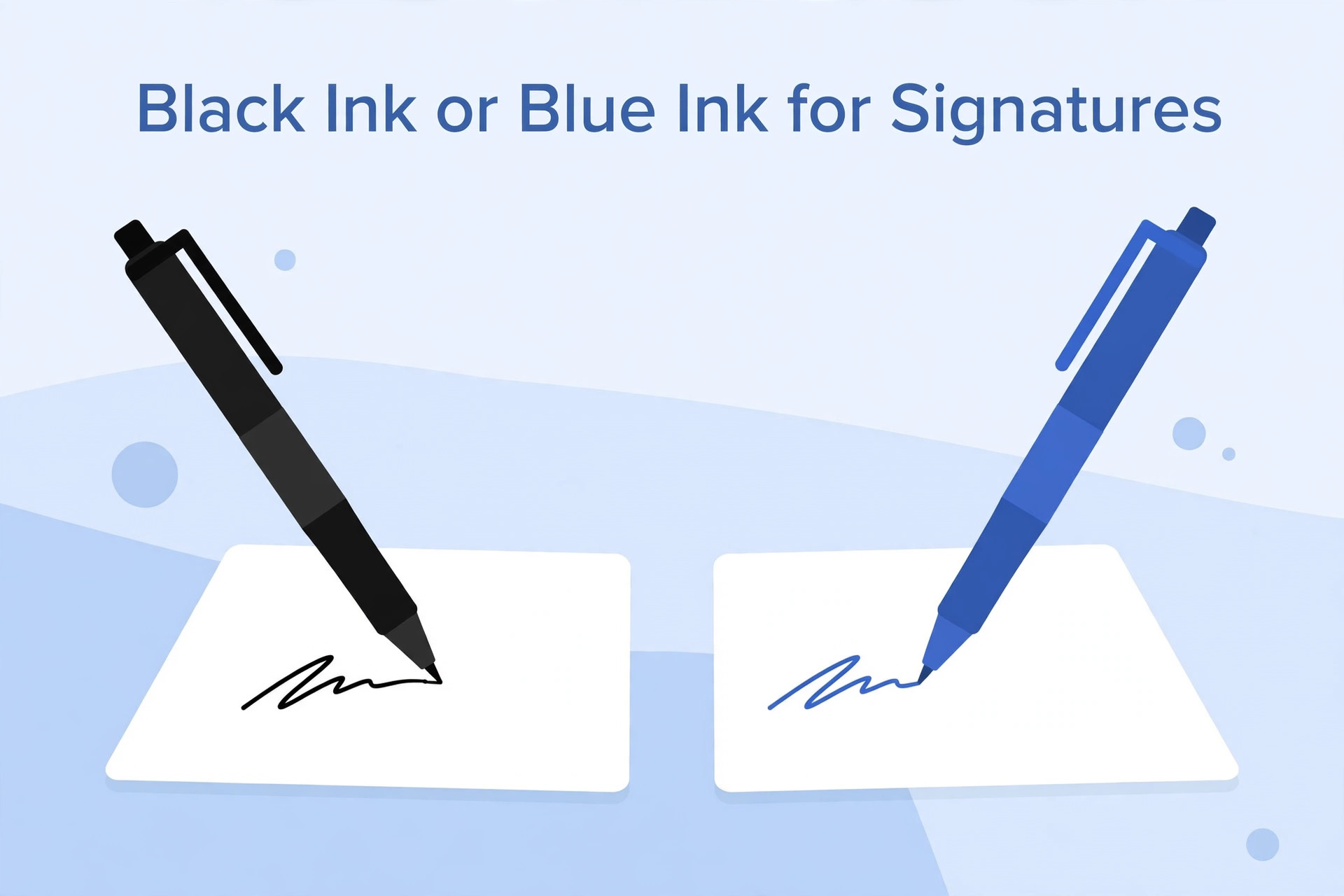
Applicants preparing an online government job form often ask whether they should use a black pen or a blue pen for the signature upload. The question sounds simple, but there is no single answer for every recruitment examination. Some authorities specify an ink colour. Others ask for a clear handwritten signature without naming a colour. A few provide a sample image that helps applicants understand the expected appearance.
The safest rule is to follow the current official notification. Do not choose a pen only because someone used it for another examination. A signature image should be genuine, clear and prepared according to the specific application instructions.
Why applicants get confused
Many online guides repeat a general recommendation such as “use black ink” or “use blue ink.” These statements may be based on a particular examination or an older application process. When applicants treat them as universal rules, they can prepare an image that does not match the current notice.
Recruitment authorities can change their application instructions. Requirements may also differ between the photograph, signature, thumb impression and handwritten declaration fields. The instruction for one upload should not automatically be applied to another.
Check the exact wording
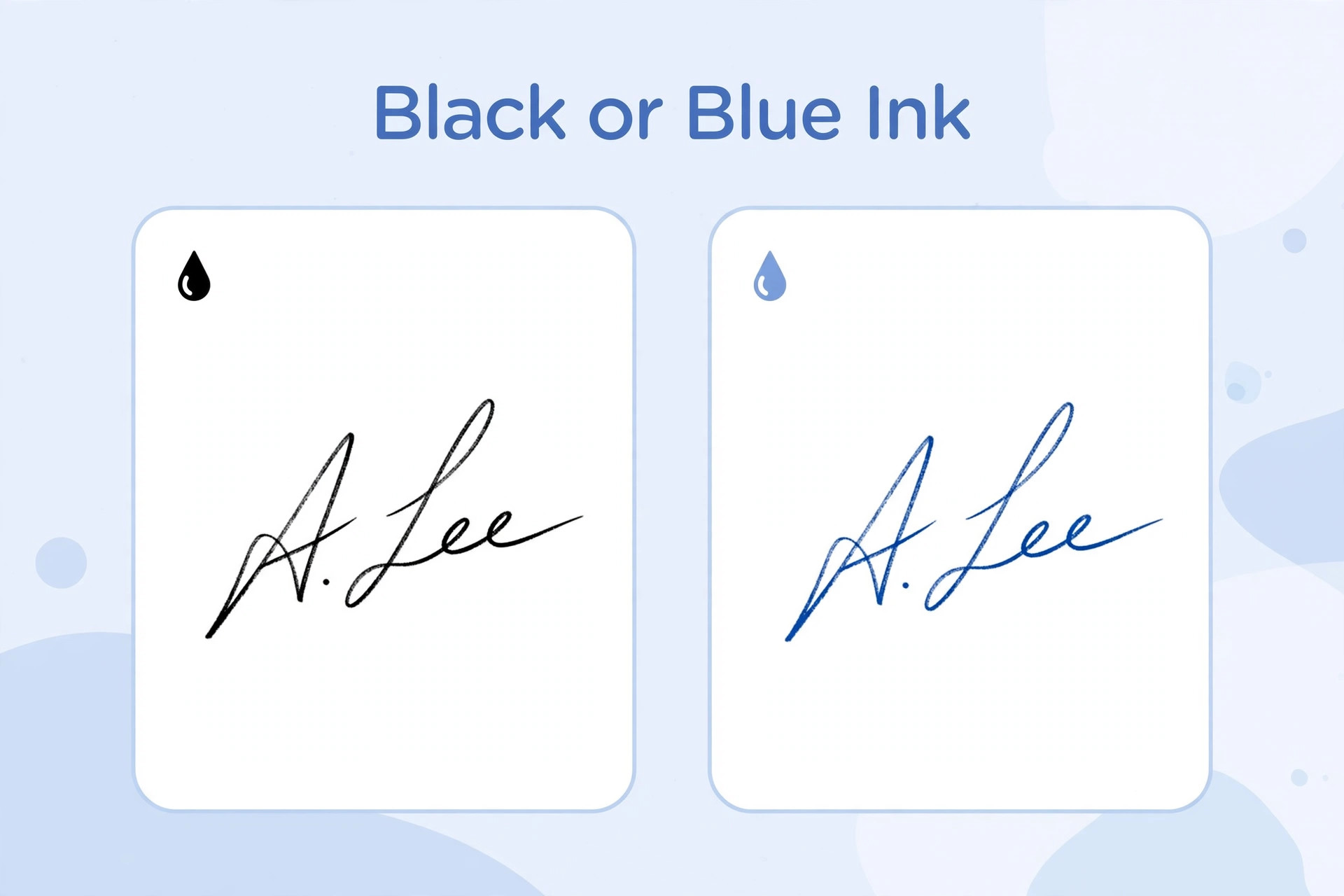
Open the official recruitment advertisement and application instructions. Search for words such as “signature”, “ink”, “black”, “blue”, “plain paper” and “scanned image”. Read the complete sentence rather than relying on a short summary.
If the notice says to sign with black ink, use black ink. If it says blue ink, use blue ink. If it does not mention a colour, check whether a sample image or help document provides more detail. If the information is still unclear, contact the official helpdesk.
Do not treat an instruction from a coaching website, blog comment or old social media post as an official requirement. Such information can be useful as a pointer, but the authority's current document should decide.
Differences between black and blue ink in a scan
Black ink often creates strong contrast against white paper. Blue ink can also be clear and easy to distinguish. The quality of the pen matters as much as the colour. A dark blue pen with consistent ink may scan better than a black pen that produces faint or broken strokes.
A scanner or phone camera can change how colours appear. Poor lighting, automatic colour correction and compression may make a signature look lighter than it did on paper. That is why you should inspect the exported image rather than judging only the physical signature.
Choose a pen that writes consistently
Once you know the required colour, choose a pen that produces an even line. Avoid pens that skip, leak or create very thick strokes. The signature should be visible after scanning and resizing.
Test the pen on a separate sheet. Check that the ink is not too faint and does not spread across the paper. If the pen creates uneven marks, use another one. Do not practise repeatedly on the final sheet.
Keep the signature genuine
The signature should be the applicant's own usual signature. Do not copy another person's handwriting or use a font that looks like a signature. Do not create a digital design and present it as a handwritten signature if the authority asks for one written on paper.
A genuine signature is important because it may be compared with documents or signatures made at later stages. Keep the style consistent with the signature you normally use for official records.
What if the form does not specify an ink colour?
If the official instructions do not mention a colour, do not invent a compulsory rule. Check the sample image, application help page and any official FAQ. If there is no further guidance, choose a pen that produces a clear, dark and consistent line on plain paper, provided that no other instruction conflicts with it.
When the consequences of uncertainty are important, ask the recruitment authority before submitting the form. Do not rely on a random online answer for a requirement that can affect your application.
Avoid common signature mistakes
A signature may be difficult to read if the ink is too light, the paper is dirty or the scan is blurred. Thick marker strokes can merge letters. A photograph taken under yellow light may change the appearance of the ink. A very low-quality export may make thin strokes disappear.
Do not try to make the signature darker with extreme image editing. Strong contrast adjustments can remove parts of the handwriting or create rough edges. If the original is poor, sign again on clean paper and scan it properly.
How to prepare a clear signature image
Write on clean paper and keep the sheet flat. Use even lighting and place the camera directly above the signature if you are scanning with a phone. Keep the whole signature in frame. After scanning, crop the image with a small margin around the strokes.
Export the file in the format requested by the portal. If dimensions are specified, resize without stretching the handwriting. If the file is too large, compress it gradually and inspect the result. Make sure the final image still shows every stroke.
What if you already uploaded the wrong ink colour?
First check whether the application has a correction facility. Some recruitment processes allow certain fields to be edited during a correction window, while others do not. Read the official correction instructions and check the dates.
Do not submit multiple applications to solve the issue unless the authority explicitly permits it. If the signature field cannot be changed and you believe the uploaded image conflicts with the instructions, contact the official helpdesk and retain the application number and relevant communication.
Frequently asked questions
Is black ink safer than blue ink?
Neither colour is universally safer. The current recruitment notification decides. If no colour is specified, focus on producing a clear, genuine signature and check any official sample.
Can I use a gel pen?
Use a pen type that produces a clear, stable line and follows the authority's instructions. Avoid ink that smudges or spreads.
Can the signature be scanned in colour?
Follow the portal's file and image instructions. If it does not specify colour or grayscale, check the official sample or help document.
Will a blue signature be rejected automatically?
That depends on the particular recruitment rules. Do not assume rejection or acceptance without checking the current notice.
Can I change the ink colour digitally?
Do not alter the signature to make it appear as though it was written in a different ink. Use the correct pen and prepare a fresh genuine signature if necessary.
Final advice
The black-versus-blue question should always be answered from the official instructions for the examination. Use the specified ink when a colour is named. When the notice is silent, check the official sample and help information rather than following a general online rule. A clean, genuine and readable signature is the goal.
Additional practical considerations for pixel dimensions
A useful way to avoid confusion is to treat pixel dimensions as a separate task instead of mixing it with every other part of the application. First identify what the authority is asking for, then prepare the relevant file or information, and finally compare the result with the official instructions. This order matters because editing a file before checking the rules can create extra work. It may also lead to a version that looks correct but does not satisfy the upload field.
For example, imagine that you have prepared the final image selected in the upload window. Before submitting it, pause and review width and height in pixels. Check whether the information is complete, whether the image or document opens correctly and whether the file still looks clear after the final export. If the portal shows a preview, compare that preview with the saved file. A preview can reveal an incorrect crop, a wrong upload field or a file that has not been processed as expected.
It is also useful to keep a small record of what you have checked. Write down the name of the recruitment, the date you reviewed the notification and the technical requirements that apply to this upload. If the authority later publishes a correction or revised instruction, check whether it changes anything. This is especially important when you apply for more than one post or when a recruitment process remains open for several weeks. Do not rely on a screenshot saved from an earlier application cycle.
When something goes wrong, avoid changing several things at once. Read the error message, identify the property it refers to and make one correction. For example, if the message concerns the file type, verify the actual format before changing dimensions. If it concerns readability, inspect the original capture before compressing it again. A step-by-step approach makes it easier to understand the cause and prevents unnecessary changes to a correct file.
Before you finish, ask yourself these questions: Does the file belong to the correct applicant? Is it the document or image requested in this field? Are all important details visible? Does it follow the current notice? Have you checked the final saved version rather than an earlier draft? These checks are simple, but they are useful because upload mistakes often happen when applicants are in a hurry.
If the instructions appear inconsistent, do not choose whichever value seems easier. Check for a later official notice, a corrigendum, an application help page or a clarification from the recruiting authority. Keep the response or reference number if you contact support. An unofficial blog or social media post can help you understand a topic, but it should not override an official recruitment instruction.
Finally, keep your original records safely. Save the unedited scan or source file separately from the version prepared for upload. This gives you a clean starting point if a correction is required or another portal asks for a different format. Use clear filenames and avoid sharing personal documents through public links. A careful file-management routine makes the application process more organised and reduces the chance of selecting an outdated version.