When applicants prepare a photograph for a government job form, one common question is whether the background must be pure white or whether a light-coloured background is acceptable. The answer depends on the instructions of the recruitment authority. Some application systems clearly mention a white background. Others ask for a plain or light background. Some provide a sample photograph instead of a detailed description.
Choosing a background by guesswork can create an avoidable problem. A neat photograph is useful, but it must also follow the exact instruction for the examination. This guide explains the difference between white and light backgrounds, how to prepare a clean photograph and what to check before uploading it.
What is a white background?
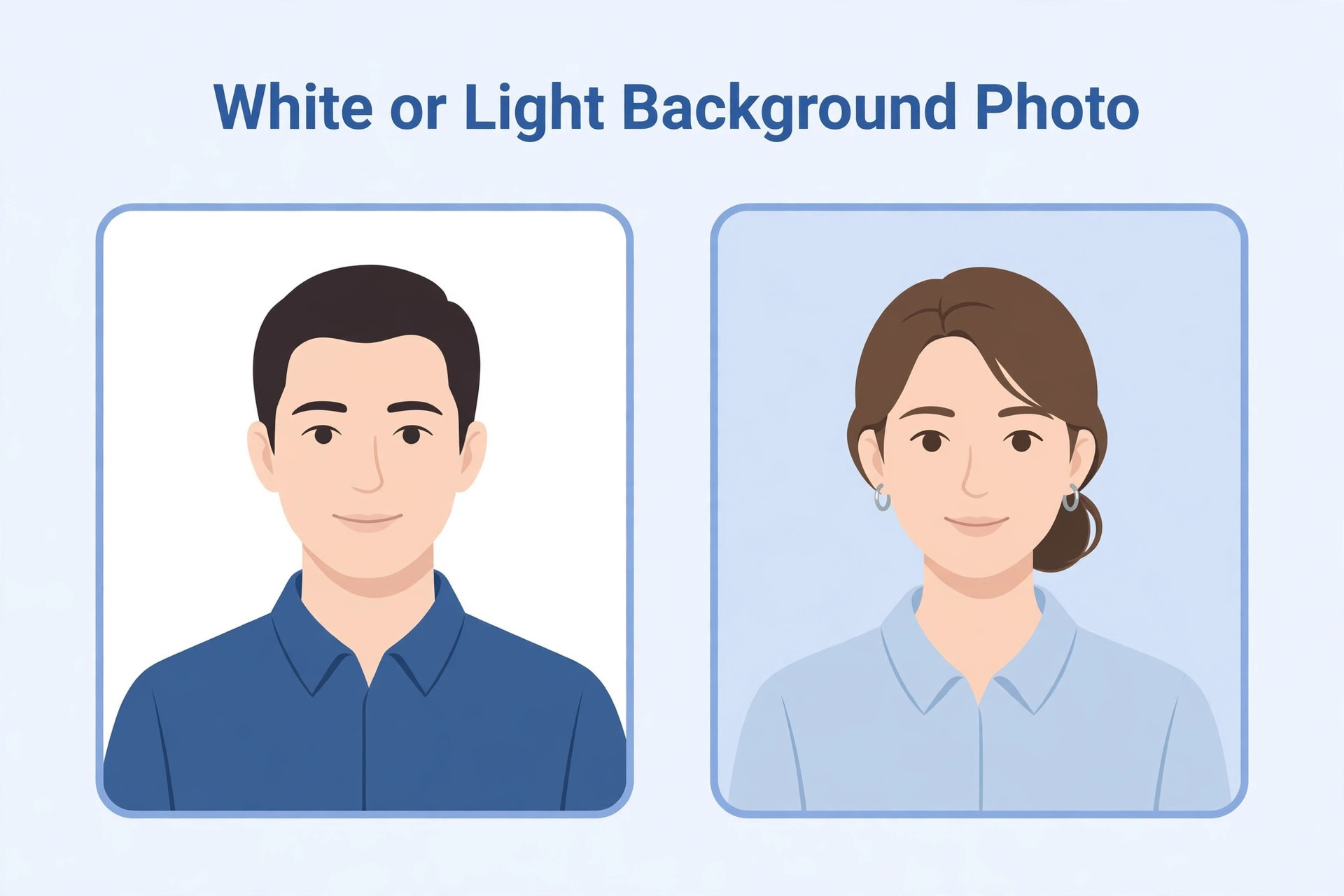
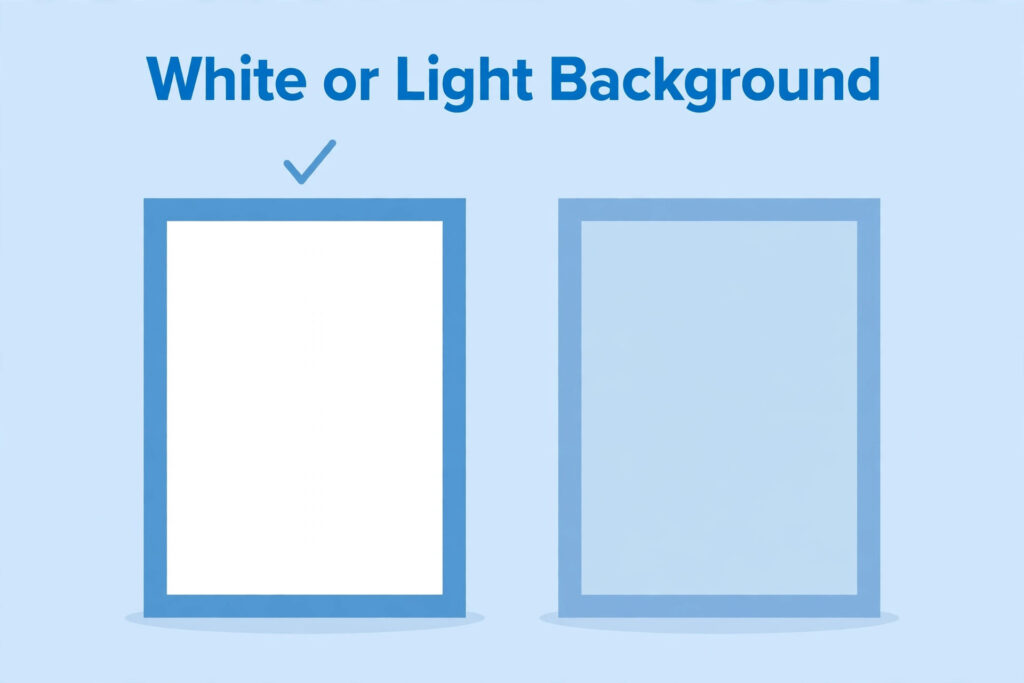
A white background is a plain background that appears white in the photograph. It should not contain patterns, furniture, wall decorations or strong shadows. A white background helps the face stand out, especially when the applicant wears clothing that contrasts with it.
A background that looks white to the eye may appear grey or yellow in a photograph because of room lighting or camera settings. If the notification specifically asks for white, inspect the final image rather than relying on how the wall looked when the photograph was taken.
What does a light background mean?
A light background generally refers to a pale, unobtrusive colour. It may look off-white or another soft shade, depending on the environment and the camera. However, the phrase “light background” can be interpreted differently by different authorities. If the recruitment notice gives a sample image or names an accepted colour, follow that instruction.
Do not assume that every light colour will be accepted. A pale blue wall may look simple, but it may not match a portal that expects a white background. When the wording is unclear, check the official instructions or helpdesk information.
Why background instructions matter
A recruitment authority may use photographs for identity checks and document processing. A plain background can make the face easier to see and may help automated image checks. A busy background, strong shadows or objects close to the head can make the photograph look untidy or reduce clarity.
The background is only one part of image quality. A plain white wall does not make a photograph suitable if the face is blurred, poorly lit or cropped incorrectly. The entire image should be clear and should match the framing and file requirements.
How to choose a suitable location
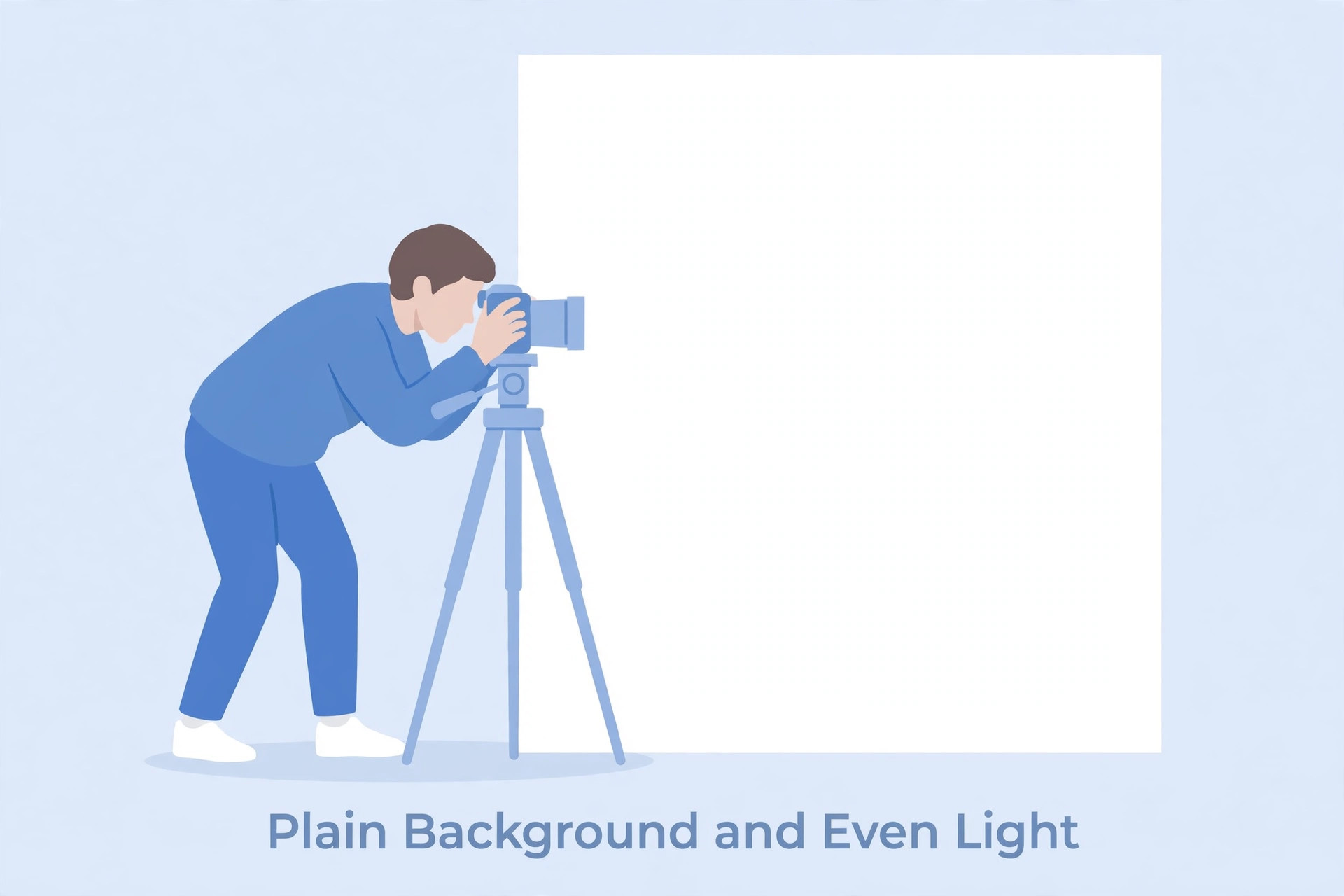
Look for a simple wall or backdrop that matches the notification. Stand far enough away from the wall to reduce a strong shadow behind your head. Keep the camera at face level and use steady lighting. Natural light can work well when it falls evenly on the face, but avoid standing with a bright window directly behind you.
If you are using an artificial light, place it so that it does not create harsh shadows across the face. Avoid mixing different coloured lights because they can make the background look yellow or blue. Take a test photograph and review it before taking the final one.
Clothing and background contrast
Choose clothing that allows your face and shoulders to remain distinct from the background. If you wear a white shirt against a white background, the outline of the shoulders may become difficult to see. A simple, darker or medium-coloured outfit may create clearer separation, provided it follows any dress instructions in the notification.
Do not wear a cap, scarf or accessory that hides the face unless the official rules specifically allow it. If religious or other permitted head coverings are addressed in the recruitment instructions, follow those provisions carefully and keep the face visible as required.
Can you change the background digitally?
Some image editors can replace or remove a background. This may be useful for ordinary photographs, but recruitment applications require care. A heavily edited image can look unnatural or may not meet the authority’s requirements. Do not alter the face or create an image that no longer represents your actual appearance.
If the notification asks for a photograph against a particular background, the safest approach is to take a new photograph against that background. Digital editing should not be used to hide, change or reconstruct facial features. If the authority provides specific rules about editing, follow them.
How to avoid shadows
Shadows can appear behind the head or across the face. To reduce them, move slightly away from the wall and use soft, even lighting. Do not place a bright light very close to one side of the face. If the room has a window, face the light rather than placing it behind you.
Check the photograph on a larger screen if possible. Shadows that are difficult to notice on a phone thumbnail may become obvious when the image is enlarged. If a shadow covers the eyes or facial outline, take another photograph instead of trying to fix it with strong editing.
What if the notice does not mention a background colour?
Read the entire photograph section, including sample images and linked application instructions. If no colour is specified, use a simple, plain background that makes the face clear. Do not treat this general suggestion as an official rule. The authority’s instructions remain the final reference.
If the portal displays a sample image, compare the framing, face position and background appearance. If there is a help document, check whether it explains the sample. If uncertainty remains, contact the official support channel before the deadline.
Common background mistakes
Applicants sometimes stand in front of a patterned curtain, a door or a wall with objects visible. Others use a very bright light that makes the background white but overexposes the face. Some use a background-removal application that leaves rough edges around hair or shoulders. These problems can make the photograph look artificial.
Avoid placing another person or object behind you. Keep the frame simple. Do not use portrait-mode blur if it creates an artificial outline around the head. A normal, clear photograph is often better than an image with decorative effects.
A background check before upload
Use this quick review:
- Confirm whether the notice says white, light or plain background.
- Check whether a sample photograph is provided.
- Make sure the background has no visible objects or patterns.
- Look for shadows behind the head and across the face.
- Confirm that the face is clear and correctly positioned.
- Check that clothing does not blend completely into the background.
- Avoid artificial background effects unless expressly permitted.
- Review the final image after resizing and compression.
Frequently asked questions
Is a white background always compulsory for government exams?
No. Background requirements vary. Follow the current notification for the examination you are applying to.
Is an off-white background the same as a white background?
Not necessarily. If the notice specifically says white, use a background that appears white in the final photograph. Do not assume off-white will be accepted.
Can I use a blue background?
Only if the instructions permit it or do not specify a different requirement. If a white or plain light background is requested, do not choose blue without confirmation.
Can I remove the background using an online tool?
A tool may change the background, but editing can leave unnatural edges. Taking a new photograph against the required background is generally safer.
What if the background looks different after scanning?
Check the scanned image and adjust the lighting or scan settings without changing the person’s appearance. If it still looks unsuitable, create a fresh photograph.
Final guidance
Do not choose a background based on what another applicant used in a different examination. Check the current recruitment instructions, prepare a plain and evenly lit photograph, and inspect the final image before uploading. A simple background, clear face and natural appearance are more important than decorative editing.