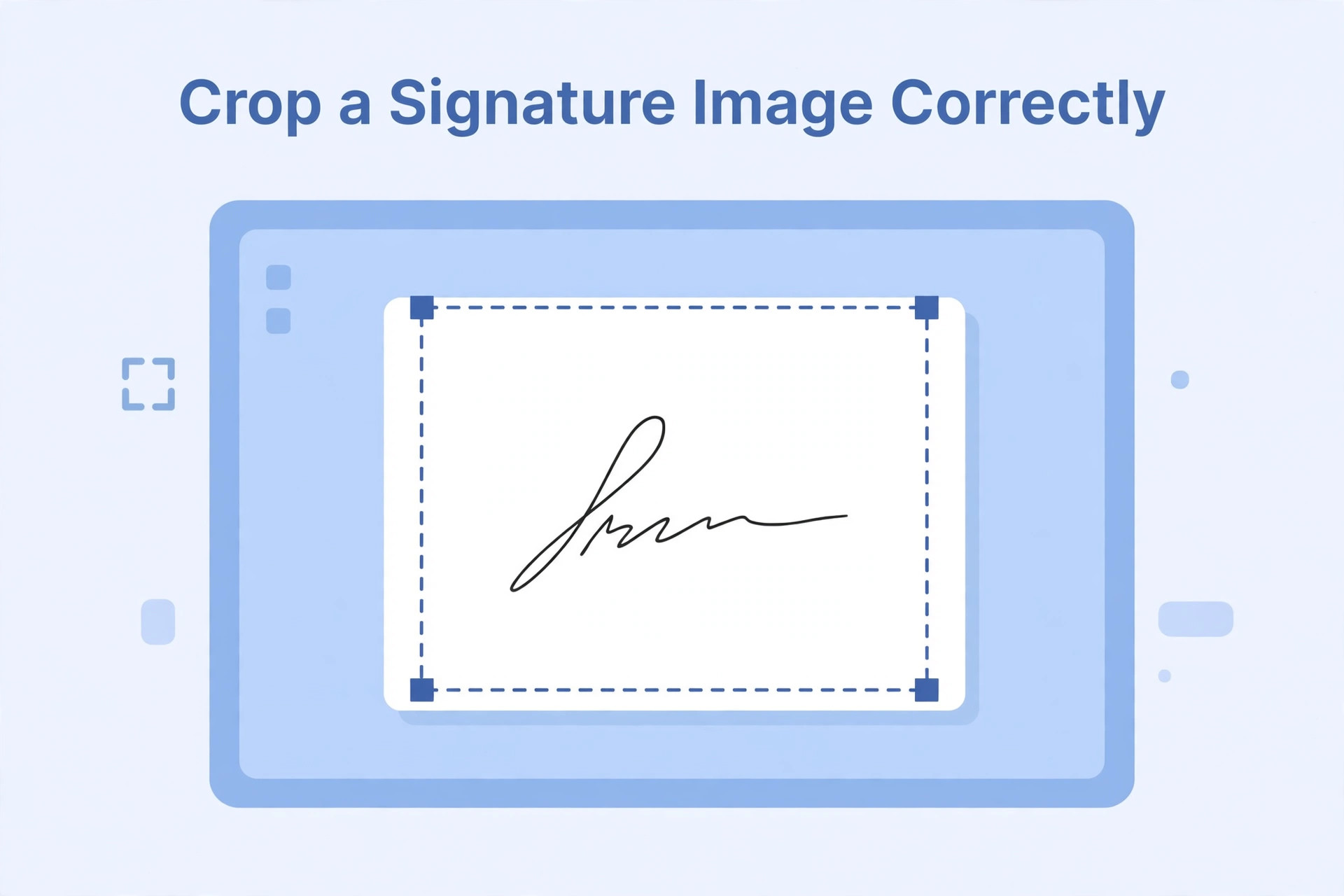
Cropping a signature image is one of the final steps in preparing a handwritten signature for an online recruitment form. A scan often contains a large sheet of paper, empty space or a little area around the signature that is not needed. Cropping can make the signature easier to view and can help prepare the image for the upload box. However, careless cropping can cut off a letter, underline or small stroke. It can also make the signature look too large or too small in the final file.
The purpose of cropping is to remove unnecessary space while keeping the genuine signature complete and readable. It should not change the handwriting or create a different signature. Always check the current recruitment instructions before editing because the authority may provide a sample image, pixel dimensions or a specific way to prepare the file.
Understand what cropping does
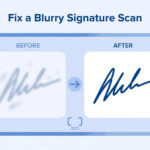
Cropping removes part of the image outside a selected frame. It does not automatically improve the quality of the signature. If the original scan is blurred, cropping will not make the handwriting sharp. If the signature is too faint, removing blank space will not fix the ink contrast.
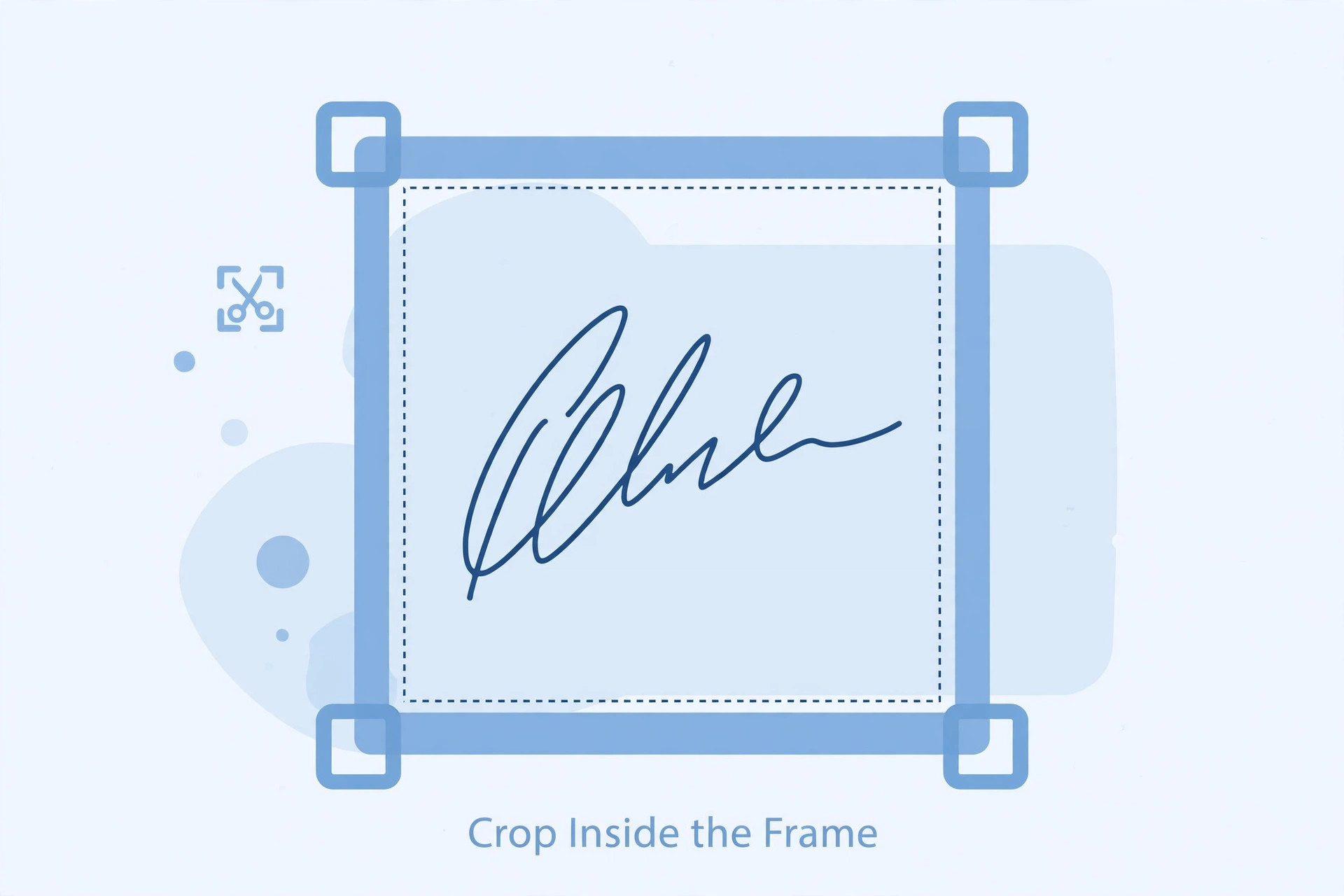
A good crop includes the complete signature with a small margin around it. A poor crop may cut the first or last stroke, remove an underline, or leave the handwriting touching the edge. The image should look balanced when opened at normal size.
Start with the original scan
Keep the original scan in a safe folder. Make a copy before cropping. This gives you a clean source if the crop is too tight or if you need to prepare a different version for another recruitment portal.
Open the copy in an image editor that allows you to select a crop area. If the scan includes the whole sheet, first identify the full boundary of the signature. Check for small strokes that may extend farther than the main letters. Do not crop based only on the central part of the handwriting.
Leave a small margin
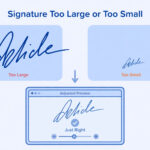
A signature should not touch the border of the image. Leave a little empty space around the top, bottom, left and right edges. The exact amount of space depends on the sample image and upload instructions. If a sample is available, use it to understand how the signature is positioned.
Too much blank space can make the signature appear tiny after upload. Too little space can make it look cramped. The aim is a neat frame that shows the complete signature clearly.
Keep the original proportions
Cropping changes the shape of the image frame. If you need exact pixel dimensions, consider the target aspect ratio before finalising the crop. Some editors let you enter a fixed ratio, while others allow a free crop.
Do not stretch the signature after cropping to force it into a different shape. If the target box is wide and short, crop extra blank space above and below while preserving the full handwriting. If the original signature is naturally tall, a new signature written in a more suitable natural layout may be better than distorting the image.
Avoid cutting off small strokes
Some signatures include long starting strokes, underlines, dots or flourishes. These may be easy to miss when the image is zoomed out. Zoom in before confirming the crop. Check the beginning and end of the signature and look carefully at the top and bottom edges.
If you are unsure whether a mark is part of the signature, keep it. Do not remove it simply because it looks like an extra line. The goal is to preserve the signature as written.
Use a clean background
The paper around the signature should be clean and free from unnecessary marks. If the scan includes dust or a shadow, first consider making a new scan. Aggressive editing can remove thin parts of the handwriting. If the recruitment rules permit basic image adjustments, make only small changes and compare the result with the original.
Do not use an automatic background remover without inspecting the output. Such tools can mistake faint ink for background noise and remove parts of the signature.
Check the crop at normal size
After cropping, view the image at normal size. The signature should be easy to see without excessive zooming. If it appears too small, reduce the blank space carefully. If it looks crowded, increase the margin.
Check that the image remains level. A slightly tilted scan can make a signature look untidy. If the paper was photographed at an angle, use a perspective correction feature only if it does not change the handwriting. A fresh scan may be simpler and safer.
Crop on a phone or computer
On a phone, open the image in a trusted editing application and use the crop tool. Keep the complete signature inside the frame. Save the crop as a new file instead of overwriting the original.
On a computer, use an image editor with a crop tool and, if needed, a fixed aspect-ratio option. Check whether the tool displays dimensions in pixels. After cropping, inspect the file properties and compare them with the recruitment notice.
Common cropping mistakes
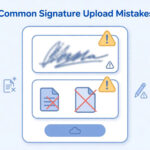
Applicants sometimes crop so close that the signature touches the edge. Others leave the entire sheet visible, making the signature too small. A third mistake is using a fixed crop ratio that cuts off the natural shape of the handwriting. Automatic cropping can also remove faint strokes.
Do not rotate or reshape the signature simply to make it fit a box. Do not erase marks that may be part of the genuine signature. Do not crop from a low-quality screenshot if the original scan is available.
Final upload checklist
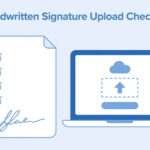
Before uploading, confirm that the crop contains the complete signature, has a small margin, looks balanced and follows the sample image. Check the file format, file size and pixel dimensions. Open the final saved file rather than relying only on the editor preview. Make sure the file you select in the recruitment portal is the latest version.
Frequently asked questions
How much blank space should I leave around the signature?
Follow the recruitment portal's sample or written instruction. If no margin is specified, leave a small, balanced space so the handwriting does not touch the image edges.
Can I crop the signature into a very narrow rectangle?
Only if the full signature remains natural and readable and the portal accepts that shape. Do not squeeze or stretch the handwriting.
Should I remove every white area around the signature?
No. A small margin is useful. The aim is to remove excessive blank paper, not to make the strokes touch the frame.
Can I crop a signature on a mobile phone?
Yes, if the application preserves image quality and allows you to save a separate copy. Check the final file after cropping.
What if I accidentally cut off part of the signature?
Return to the original scan and crop again. Do not try to draw the missing part digitally.
A reliable approach
Keep the original scan, crop a copy, preserve the full handwriting and leave a balanced margin. Check the image at normal size and verify the technical requirements before upload. Careful cropping makes the signature easier to review without changing the signature itself.