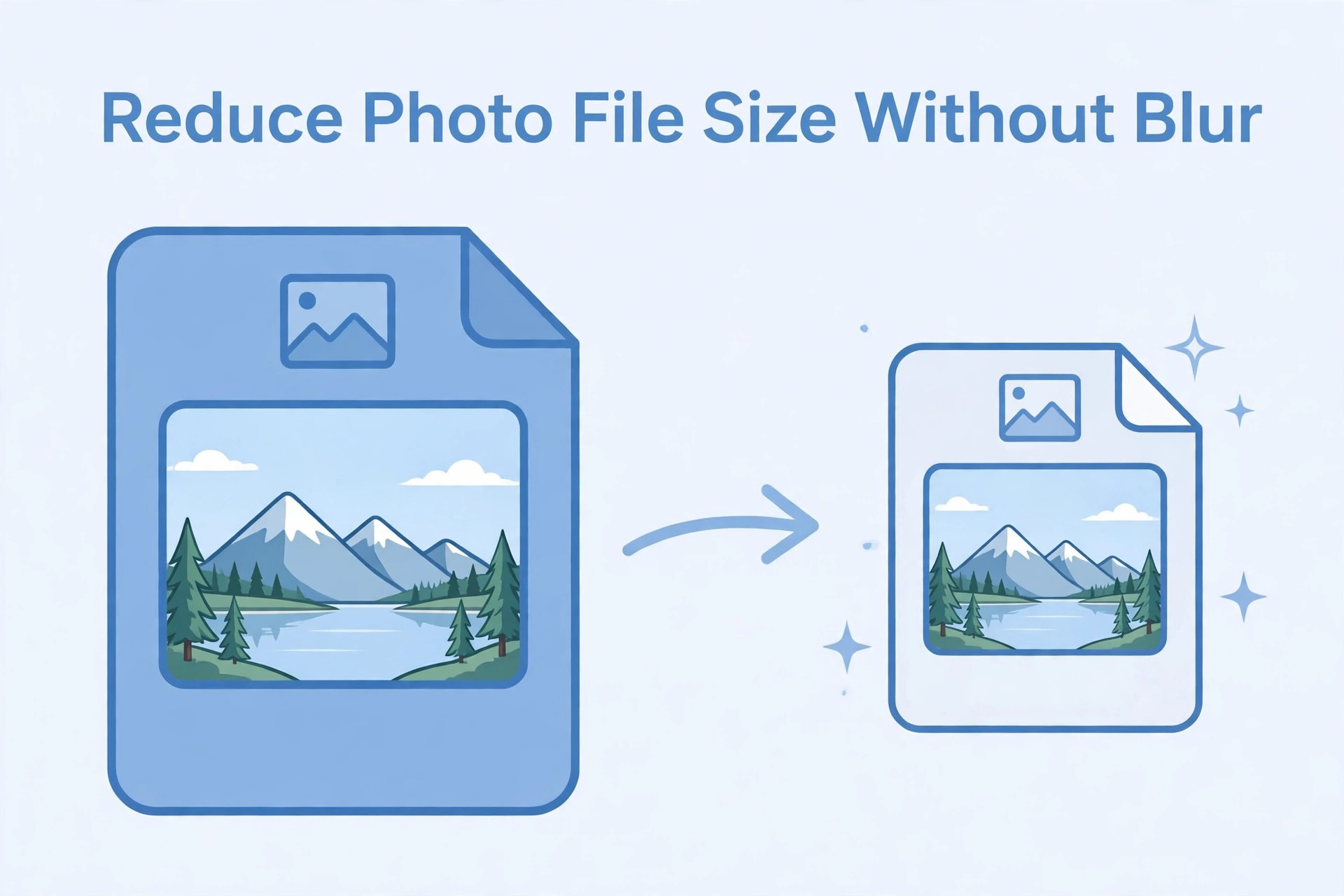
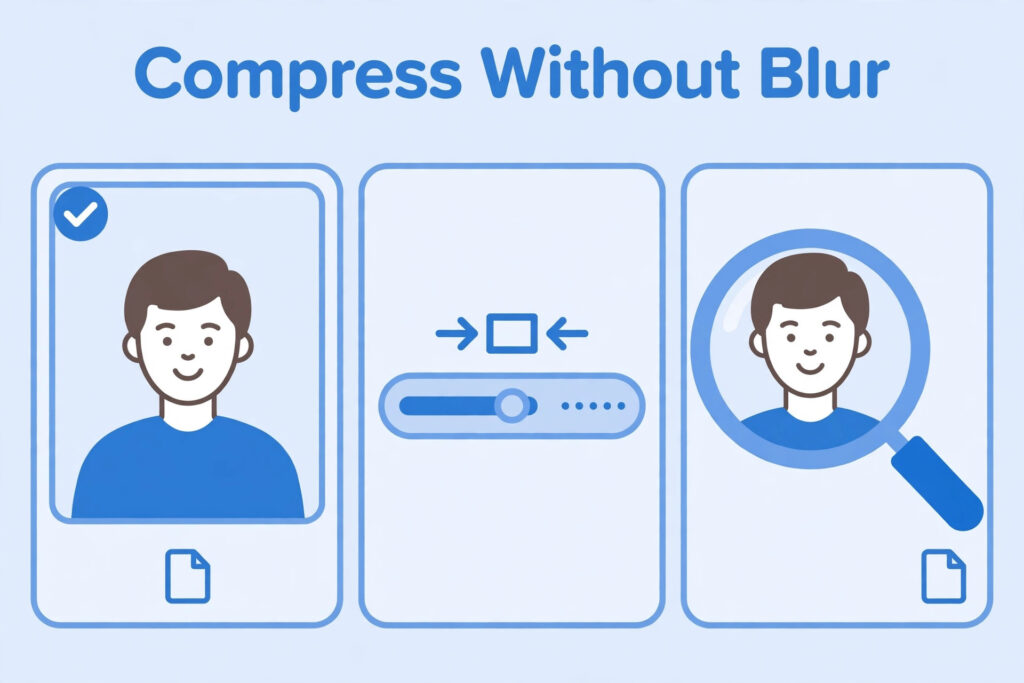
A recruitment portal may ask you to upload a photograph within a specific file-size range. If your image is larger than the allowed limit, you may need to reduce its size before submitting the form. Many applicants solve this problem by using an online compressor, but reducing the file too much can make the face look blurred, blocky or unclear.
The right method is to understand the difference between image dimensions and file size, make a copy of the original photograph, and compress it gradually. You should stop as soon as the file meets the portal’s requirement while remaining easy to recognise.
File size and image dimensions are different
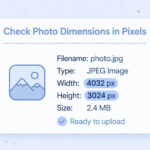
File size is the amount of digital storage used by an image. It is usually displayed in KB or MB. Image dimensions describe the width and height in pixels. A photograph can have large dimensions and a relatively small file size, or smaller dimensions and a larger file size, depending on image content and compression.
This difference matters because some recruitment portals specify both. If the portal asks for exact pixel dimensions and a maximum file size, you must satisfy both conditions. Compressing the image alone may not correct the dimensions. Resizing it alone may not bring the file below the size limit.
Before editing, read the upload instructions and note the accepted file format, minimum size, maximum size and pixel dimensions, if provided.
Keep an original copy
Always preserve the original photograph. Create a separate copy for editing. If you compress the only copy repeatedly, image quality may decrease with every export. You may then have to take another photograph.
Use a clear file name for the original and the edited version. For example, keep one file as “original-photo” and another as “exam-photo-final”. This reduces the chance of uploading the wrong image.
Crop unnecessary empty space
A photograph may contain a large amount of empty background. If the recruitment instructions allow a tighter crop, removing unnecessary space can reduce the number of pixels and make the face more prominent. However, do not crop away the head, chin or shoulders if the sample image expects them to be visible.
Cropping should be based on the required framing. Do not crop simply to make the file smaller. A poorly framed image may be rejected even if it meets the file-size limit.
Resize only when necessary
If the portal specifies pixel dimensions, resize the photograph to those dimensions. If it does not specify dimensions, do not reduce them without a reason. A smaller image contains less detail and may look poor when enlarged.
Keep the aspect ratio locked while resizing. This prevents the face from becoming stretched. If the target dimensions have a different shape from the original photograph, crop the image to the correct shape first.
After resizing, open the image and check whether facial details remain clear. If the eyes, hairline or face outline look blocky, return to the original and try a less aggressive adjustment.
Use controlled compression
Many image editors allow you to choose JPEG quality when exporting. Higher quality usually produces a larger file, while lower quality produces a smaller file. The exact result depends on the image and the software.
Start with a moderate quality setting and check the output. If the file is still too large, reduce the quality slightly and export another copy. Do not jump immediately to the lowest setting. The goal is to meet the portal’s limit without damaging the photograph.
Some tools show an estimated output size before saving. Treat the estimate as a guide, then check the actual saved file. Different applications may produce slightly different results.
Choose a suitable format
Use the format named in the recruitment instructions. JPG and JPEG are commonly used for photographs. PNG may be accepted by some portals, but it can produce a larger file for photographic images. Do not rename the file extension to pretend that one format is another.
If you need a JPEG, use an image editor’s export option and select JPEG. After exporting, open the file to make sure it works correctly.
Avoid repeated compression
JPEG is a lossy format. When a JPEG image is repeatedly opened and saved at lower quality, some detail can be lost. For that reason, work from the original file each time you make a new version.
A better process is to crop once, resize once if needed, and export once at a suitable quality. If the result does not meet the file-size limit, return to the original and adjust the export settings. Do not keep compressing the already compressed output.
Use online compression tools carefully
Online tools can be convenient, especially when you are using a computer at home or a phone. Before uploading a personal photograph, consider whether the service is trustworthy and whether its privacy policy explains how uploaded files are handled. Avoid unknown websites that request unnecessary personal information or ask you to install unrelated software.
If you use an online tool, select only the image-compression function you need. Download the result and inspect it locally. Do not assume that a tool’s “success” message means the image satisfies the recruitment portal’s rules.
For sensitive documents or identity-related images, an offline editor may be preferable because the file does not need to be sent to a third-party website.
Check the final file
After compression, verify the following:
- The file is within the required size range.
- The image dimensions match the notice, if dimensions are specified.
- The format is accepted by the portal.
- The face remains sharp and recognisable.
- The background and crop are still correct.
- The image opens normally.
- The final file is the one selected for upload.
Check the actual file properties rather than relying on the tool’s estimate. Some operating systems display file size in bytes, KB or MB. Make sure you understand the unit used by the portal.
Why a compressed photo may look blurry
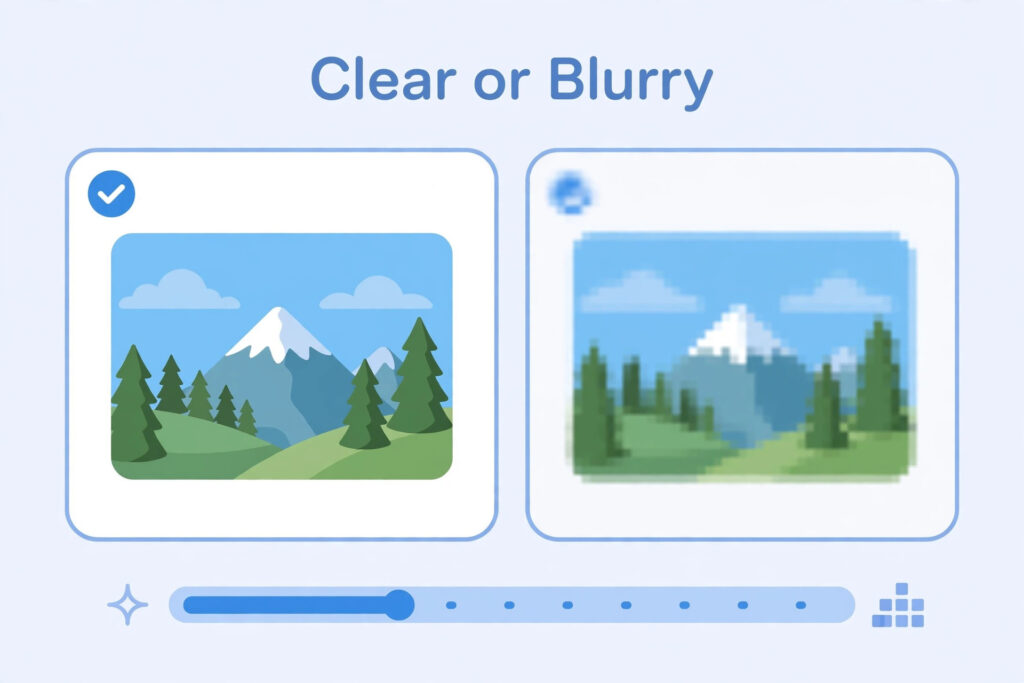
A photo may look blurry because the original was not sharp, the image was reduced too much, the compression quality was too low or the file was enlarged after compression. It may also look soft because of poor focus or camera movement.
Compression cannot restore detail that was never captured. If the original photograph is blurry, take a new one. If the original is clear but the compressed copy is not, export it again from the original at a higher quality.
Common mistakes to avoid
Do not reduce the image dimensions below the required minimum. Do not use a very low quality setting just to reach a tiny file size. Do not change the extension manually. Do not crop the face to make the image smaller. Do not upload an image without checking it after compression. Do not use a random photo specification from another exam.
Frequently asked questions
What is the best quality setting for a recruitment photo?
There is no single setting that works for every image and portal. Use a setting that meets the file-size requirement while keeping the face clear. Inspect the exported result.
Does reducing KB always reduce image quality?
Not always in a way that is visible, but strong compression can remove detail. Use gradual adjustments and compare the result with the original.
Can I reduce a 1 MB photo to a much smaller file?
Often yes, depending on the image dimensions and the required output. However, do not aim for a particular number unless it matches the portal’s stated range.
Should I use PNG or JPEG?
Use the format accepted by the recruitment portal. For ordinary photographs, JPEG is common, but the official instruction decides.
What if the portal says the file is still too large?
Check the actual file size, confirm the correct file was selected and export a new copy with slightly stronger compression. Keep the image readable.
A safe compression workflow
Start with a clear original image. Read the portal’s requirements. Crop only if needed, resize only when dimensions are specified, and compress gradually. Export a new copy and check the final file’s size, format and visual quality. This approach is more reliable than repeatedly uploading different files without checking them.