When filling out a government recruitment form, applicants may see separate upload fields for photographs, signatures and certificates. Some fields accept JPG or JPEG, while others ask for PDF. It can be confusing if you have scanned a certificate as an image but the portal expects a document file.
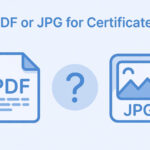
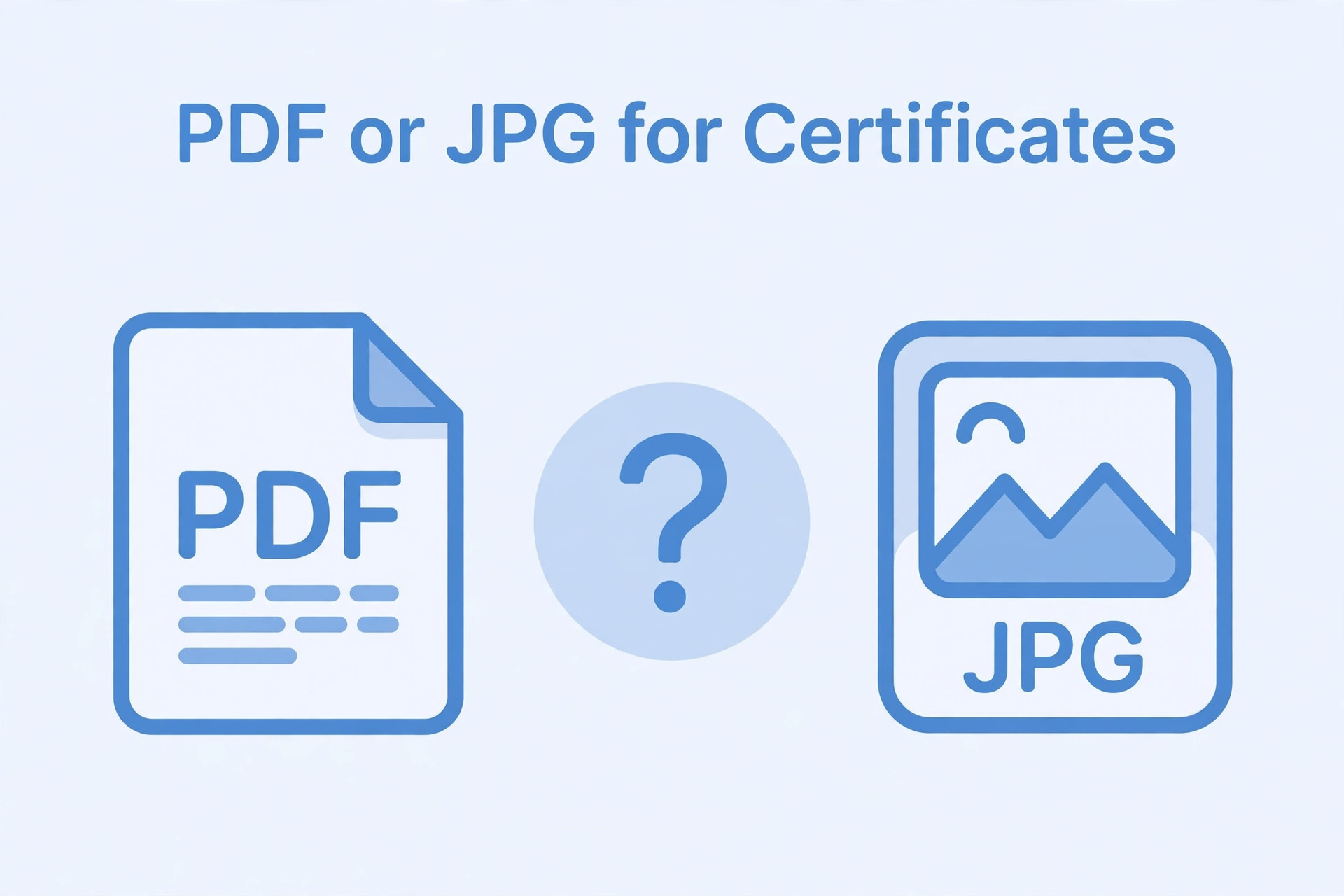
PDF and JPG are both common formats, but they serve different purposes. PDF is often useful for documents with one or more pages. JPG is commonly used for photographs and single-page images. The correct choice, however, is not based only on preference. The recruitment portal’s instructions decide which format you must upload.
What is a PDF file?
PDF stands for Portable Document Format. It is designed to present documents consistently across different devices and software. A PDF can contain text, images, multiple pages and other document elements.
A scanned certificate saved as PDF may include the complete page in one file. This is useful when the portal asks for a multi-page document or a certificate with front and back sides. The PDF can also preserve page order.
What is a JPG file?
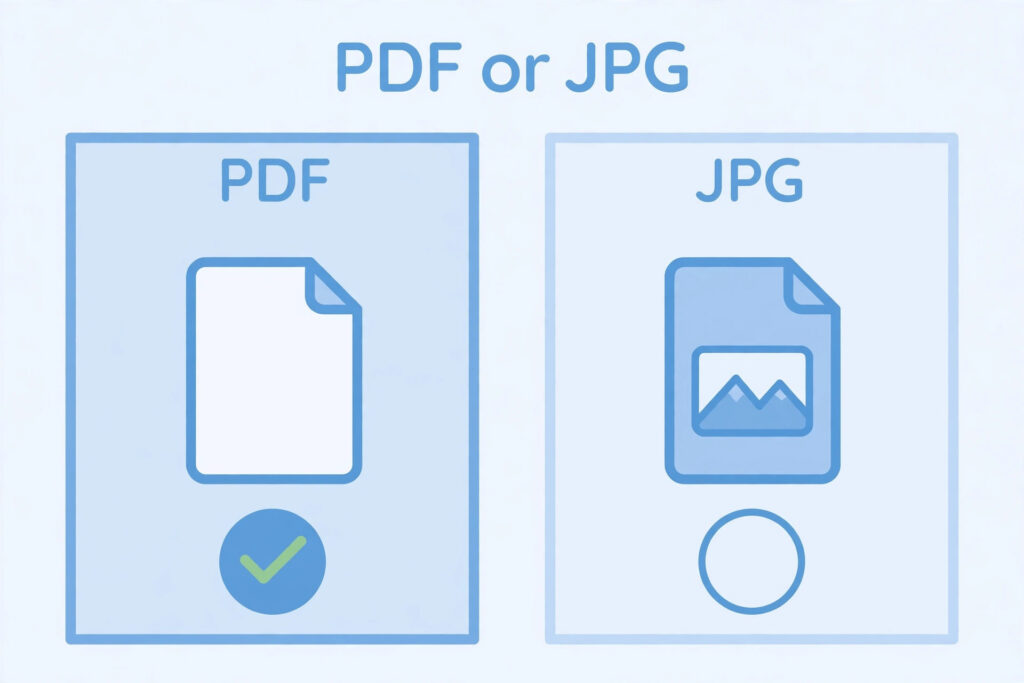
JPG, also written as JPEG, is an image format commonly used for photographs. It uses compression to reduce file size. A JPG file normally represents a single image, although multiple JPG files can be uploaded separately if the portal provides separate fields.
JPG is often suitable for a photograph or a scanned single-page image when the recruitment authority accepts it. The format may be less convenient than PDF when a document has several pages.
Why portals use different formats
Recruitment systems may use different formats for different types of uploads. A photograph or signature is naturally an image, so the portal may request JPG or JPEG. Certificates may be requested as PDF because they can contain multiple pages and are easier to review as a document.
These are common patterns, not universal rules. Some portals accept image files for certificates, while others require PDF. Always read the upload field and official instructions.
Check the file format requirement
Before scanning or converting a document, note the accepted formats for each field. If the portal says PDF only, do not upload a JPG even if the image is clear. If it says JPG or JPEG, do not assume a PDF will be accepted.
Check whether the portal allows multiple files. A certificate with two sides may need to be combined into one PDF or uploaded as separate images, depending on the instructions.
When PDF is a practical choice
PDF is useful when the certificate has several pages, when front and back sides must be submitted together or when the portal explicitly asks for a document file. It can keep pages in one sequence and make the document easier to review.
After creating the PDF, check every page. Make sure the orientation is correct, text is readable and no page is missing. If the file is too large, compress it carefully without damaging the text or stamps.
When JPG is a practical choice
JPG is useful for a single photograph or image-based upload when the portal accepts it. It is also convenient when a recruitment form provides separate image fields for a document page.
Check the image dimensions and file size. A JPG can become blurry if compressed too strongly. Keep the original scan and export a separate copy for the application.
Can you convert JPG to PDF?
Yes. A JPG image can be placed inside a PDF using a trusted PDF application or scanning tool. This is useful when the portal asks for PDF but you have a scanned image.
After conversion, open the PDF and check that the page fits correctly. Make sure the image has not been stretched, cropped or reduced so much that text becomes unreadable.
Can you convert PDF to JPG?
A PDF page can be exported as a JPG image when the portal asks for an image file and the instructions allow it. If the PDF has multiple pages, each page may become a separate image. Check whether the portal provides enough upload fields.
Do not take screenshots of the PDF if a proper export option is available. Screenshots may reduce quality and can capture toolbars or unwanted margins.
Do not change the extension manually
Renaming a file from .pdf to .jpg does not convert it. The file’s internal structure remains the same. A portal may reject it because the actual format does not match the filename.
Use a proper export or conversion tool. Open the converted file to make sure it works.
Consider privacy when using online converters
Certificates contain personal details such as names, dates and registration numbers. Before uploading them to a third-party conversion website, review its privacy and file-handling practices. An offline application may be preferable for sensitive documents.
Avoid services that ask for unrelated personal information or require unnecessary software installation.
Common mistakes
Applicants sometimes upload a JPG to a PDF-only field, combine unrelated certificates into one file or rename an extension without converting the file. Others convert a PDF to JPG and forget that the portal expects all pages. Some also compress the document so heavily that text becomes unclear.
Avoid these problems by checking the upload field, preparing the correct format and reviewing the final file.
Frequently asked questions
Is PDF better than JPG for certificates?
PDF is often convenient for multi-page documents, but the recruitment portal’s accepted format is the deciding factor.
Can I upload a JPG if the portal asks for PDF?
Do not do so unless the instructions say that JPG is also accepted. Convert the file properly if PDF is required.
Is JPEG the same as JPG?
The terms generally refer to the same image format. The file extension may be .jpg or .jpeg.
Can one PDF contain several certificates?
Only if the portal allows or requests a combined file. Separate upload fields usually require separate files.
Which format should I use for a photograph?
Follow the photograph upload instructions. Many portals ask for JPG or JPEG, but this is not universal.
Final guidance
Choose PDF or JPG based on the exact upload field, not on habit. Use PDF when the portal asks for a document file and JPG when it asks for an accepted image format. Convert files properly, check every page and keep personal documents secure.
Additional practical considerations for PDF versus JPG selection
A useful way to avoid confusion is to treat PDF versus JPG selection as a separate task instead of mixing it with every other part of the application. First identify what the authority is asking for, then prepare the relevant file or information, and finally compare the result with the official instructions. This order matters because editing a file before checking the rules can create extra work. It may also lead to a version that looks correct but does not satisfy the upload field.
For example, imagine that you have prepared the certificate upload field. Before submitting it, pause and review the file type accepted by each upload field. Check whether the information is complete, whether the image or document opens correctly and whether the file still looks clear after the final export. If the portal shows a preview, compare that preview with the saved file. A preview can reveal an incorrect crop, a wrong upload field or a file that has not been processed as expected.
It is also useful to keep a small record of what you have checked. Write down the name of the recruitment, the date you reviewed the notification and the technical requirements that apply to this upload. If the authority later publishes a correction or revised instruction, check whether it changes anything. This is especially important when you apply for more than one post or when a recruitment process remains open for several weeks. Do not rely on a screenshot saved from an earlier application cycle.
When something goes wrong, avoid changing several things at once. Read the error message, identify the property it refers to and make one correction. For example, if the message concerns the file type, verify the actual format before changing dimensions. If it concerns readability, inspect the original capture before compressing it again. A step-by-step approach makes it easier to understand the cause and prevents unnecessary changes to a correct file.
Before you finish, ask yourself these questions: Does the file belong to the correct applicant? Is it the document or image requested in this field? Are all important details visible? Does it follow the current notice? Have you checked the final saved version rather than an earlier draft? These checks are simple, but they are useful because upload mistakes often happen when applicants are in a hurry.
If the instructions appear inconsistent, do not choose whichever value seems easier. Check for a later official notice, a corrigendum, an application help page or a clarification from the recruiting authority. Keep the response or reference number if you contact support. An unofficial blog or social media post can help you understand a topic, but it should not override an official recruitment instruction.
Finally, keep your original records safely. Save the unedited scan or source file separately from the version prepared for upload. This gives you a clean starting point if a correction is required or another portal asks for a different format. Use clear filenames and avoid sharing personal documents through public links. A careful file-management routine makes the application process more organised and reduces the chance of selecting an outdated version.