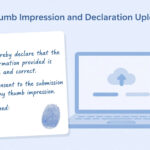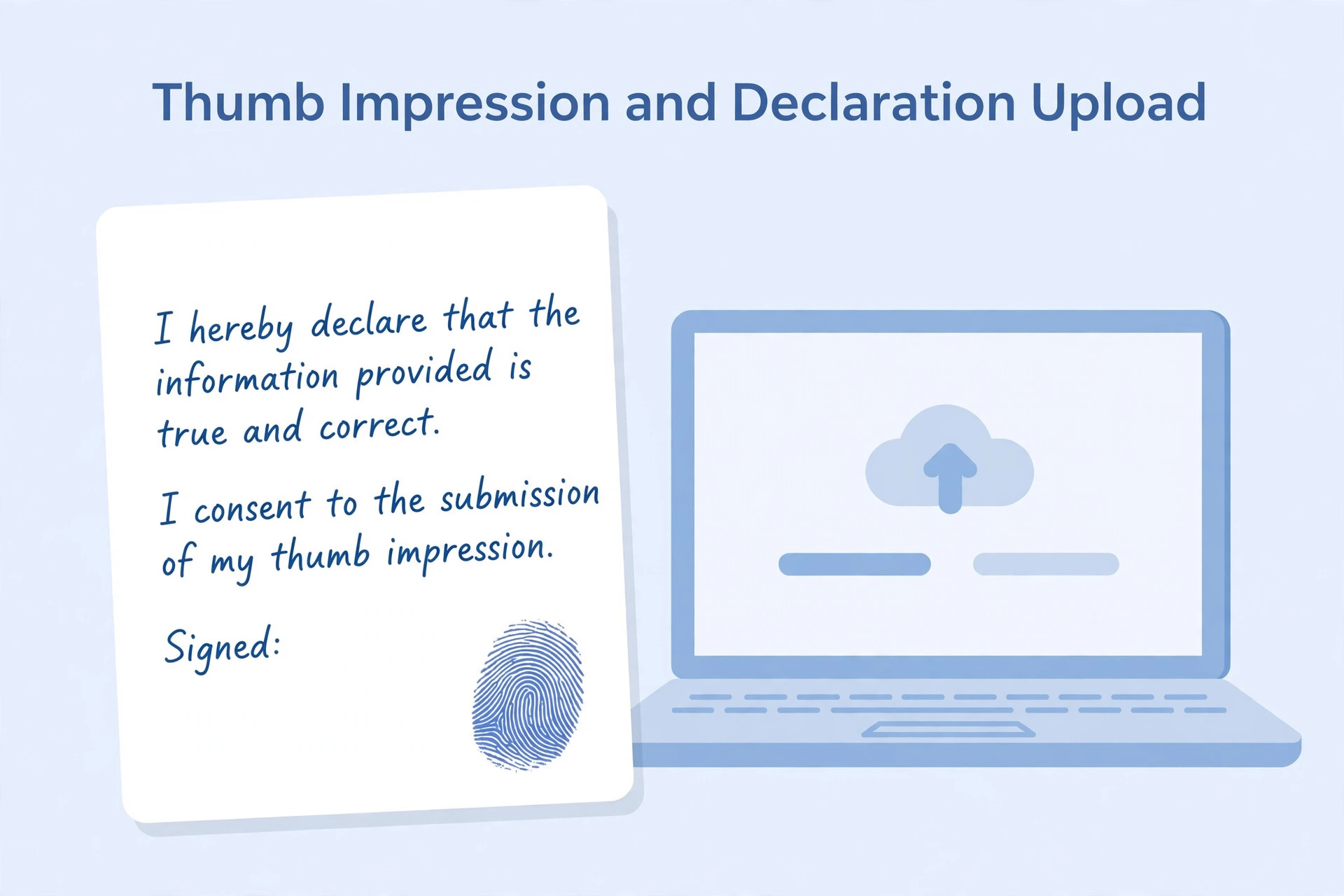
Some recruitment applications ask candidates to upload additional items such as a thumb impression or a handwritten declaration. These requirements may appear in banking, insurance or other recruitment processes. Applicants can become confused about which finger to use, how to prepare the image, what to write in a declaration and whether a printed or typed version is acceptable.
The exact process depends on the recruitment authority. Do not assume that every examination uses the same thumb, ink, paper, wording or file specifications. This guide explains how to read the instructions and prepare the required files carefully.
First confirm which items are required
Read the current official notification and application instructions. Check whether the portal asks for a left thumb impression, right thumb impression, another fingerprint or a handwritten declaration. The notice may also specify the paper, ink, wording, dimensions and file-size range.
Do not upload an item simply because it was required in another examination. Some application systems ask only for a photograph and signature, while others include additional fields.
Understand a thumb impression
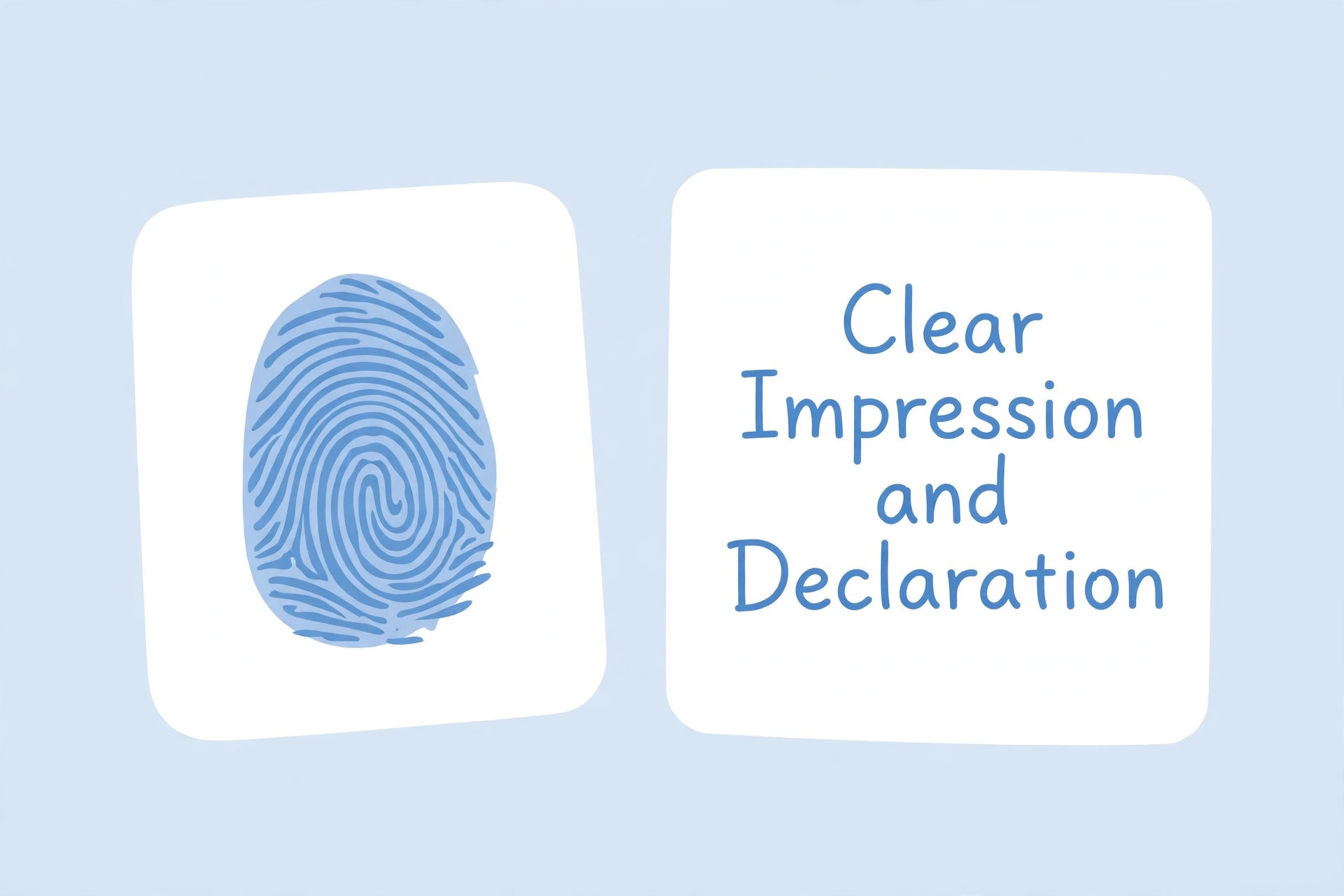
A thumb impression is an ink impression of the thumb on paper. The recruitment authority may specify which thumb should be used. Follow that instruction exactly. Do not choose a finger based on a general online guide.
If the notice provides a sample image, use it to understand the expected appearance and framing. Check whether the impression should be clear, complete and free from smudges.
Prepare a clean thumb impression
Use the method and ink specified by the authority. Make the impression on clean paper and avoid excessive ink. Too much ink can make the ridge pattern look like a dark patch. Too little ink may produce a faint impression.
Press the thumb steadily and lift it without sliding. Sliding can create smudges and make the pattern difficult to distinguish. If the impression is poor, use a fresh area of paper and try again. Do not repeatedly press over the same impression.
Scan the impression clearly
Place the paper on a flat surface and scan it in even light. If using a phone, keep the camera parallel to the page and tap to focus. Avoid shadows and glare.
Check that the entire impression is visible. Do not crop away the edges of the print. If the portal provides a sample, compare the framing and clarity.
Prepare a handwritten declaration
A handwritten declaration is a statement written by the applicant in the format specified by the recruitment authority. The exact wording can be important. Some notices provide a sentence or paragraph that must be copied by hand.
Read the instruction carefully. Check whether the declaration must be written in English or another language, whether it must be written by the candidate and what paper or pen should be used. Do not paraphrase the wording if the authority provides exact text.
Write the declaration accurately
Copy the provided statement carefully. Check every word, punctuation mark and spelling. Use clear handwriting and keep the text within the page. Do not add extra sentences or change the meaning.
If you make a mistake, use a fresh sheet rather than crossing out several words. A clean declaration is easier to read and review.
Scan and crop the declaration
Scan the complete written declaration. Make sure the first and last lines are visible and that no part of the page is cut off. Keep the text readable and avoid excessive compression.
If the authority asks for the entire sheet, do not crop tightly around the text. Follow the sample and written instructions. Check the final PDF or image after saving.
File format and size
The thumb impression and handwritten declaration may have separate file specifications. Check each upload field independently. One may accept JPG while another may require a different format or size range.
Do not assume that the same file settings apply to both. Check the final dimensions, file size and format separately. If compression is required, make sure the impression pattern and declaration text remain clear.
Common mistakes
Applicants sometimes use the wrong thumb, create a smudged impression, copy the declaration with incorrect wording or upload a typed statement when handwriting is required. Others crop the page too tightly or compress the image until the details disappear.
Avoid these problems by following the current instructions and reviewing the final file before upload.
What if the portal rejects the file?
Read the error message and check whether the issue is format, dimensions, file size or image quality. Confirm that you selected the correct file for the correct field. If the file follows the stated requirements but still fails, contact the official helpdesk.
If the application has already been submitted, check whether a correction window is available. Do not submit a duplicate application unless the authority permits it.
Frequently asked questions
Which thumb should I use?
Use the thumb specified in the current recruitment instructions. Do not assume that the left or right thumb is universal.
Can I type the handwritten declaration?
If the authority asks for a handwritten declaration, a typed version may not satisfy the requirement. Follow the exact wording and method stated in the notice.
Can I use a mobile phone to scan the declaration?
Yes, if the portal accepts the resulting file and the scan is clear and complete.
Should I use the same file size for the thumb impression and declaration?
Not necessarily. Each field may have separate technical requirements. Check them independently.
What if I make a spelling mistake in the declaration?
Prepare a fresh copy using the exact wording. Do not try to hide or digitally correct the mistake.
Final guidance
Thumb impressions and handwritten declarations should be prepared exactly as the recruitment authority instructs. Confirm the required thumb, wording, paper, ink, format and size. Scan carefully and inspect the final files before uploading them.
Additional practical considerations for thumb impression and handwritten declaration
A useful way to avoid confusion is to treat thumb impression and handwritten declaration as a separate task instead of mixing it with every other part of the application. First identify what the authority is asking for, then prepare the relevant file or information, and finally compare the result with the official instructions. This order matters because editing a file before checking the rules can create extra work. It may also lead to a version that looks correct but does not satisfy the upload field.
For example, imagine that you have prepared each separate upload field. Before submitting it, pause and review the required thumb, exact declaration wording and scan quality. Check whether the information is complete, whether the image or document opens correctly and whether the file still looks clear after the final export. If the portal shows a preview, compare that preview with the saved file. A preview can reveal an incorrect crop, a wrong upload field or a file that has not been processed as expected.
It is also useful to keep a small record of what you have checked. Write down the name of the recruitment, the date you reviewed the notification and the technical requirements that apply to this upload. If the authority later publishes a correction or revised instruction, check whether it changes anything. This is especially important when you apply for more than one post or when a recruitment process remains open for several weeks. Do not rely on a screenshot saved from an earlier application cycle.
When something goes wrong, avoid changing several things at once. Read the error message, identify the property it refers to and make one correction. For example, if the message concerns the file type, verify the actual format before changing dimensions. If it concerns readability, inspect the original capture before compressing it again. A step-by-step approach makes it easier to understand the cause and prevents unnecessary changes to a correct file.
Before you finish, ask yourself these questions: Does the file belong to the correct applicant? Is it the document or image requested in this field? Are all important details visible? Does it follow the current notice? Have you checked the final saved version rather than an earlier draft? These checks are simple, but they are useful because upload mistakes often happen when applicants are in a hurry.
If the instructions appear inconsistent, do not choose whichever value seems easier. Check for a later official notice, a corrigendum, an application help page or a clarification from the recruiting authority. Keep the response or reference number if you contact support. An unofficial blog or social media post can help you understand a topic, but it should not override an official recruitment instruction.
Finally, keep your original records safely. Save the unedited scan or source file separately from the version prepared for upload. This gives you a clean starting point if a correction is required or another portal asks for a different format. Use clear filenames and avoid sharing personal documents through public links. A careful file-management routine makes the application process more organised and reduces the chance of selecting an outdated version.